4K Microscope Pro
Thank you for ordering Mostanne 4K Microscope with Pro Stand. If you need any help about this product, please feel free to reach us via email mostanne@outlook.com, we will give you a certain reply within 24 hours.
| Software/APP | V-Scope | xploview | Win10/11 built-in Camera app | Photo Booth | Camscope |
| Support | Windows Only | Windows and Mac | Windows Only | Mac Only | iOS and Android |
| Zoom +/- buttons work | ✔ | ❌ | ❌ | ❌ | ✔ |
| Capture button works | ✔ | ✔ | ❌ | ❌ | ✔ |
Click to get Quick Access for
👉Windows
👉Mac
👉iPhone/iPad/Androids
Windows
V-Scope
Step 1. Download the V-Scope V-SCOPE.exe(14.8MB) Windows XP, Vista, 7, 8, 10 11 | 32 or 64 bit
Step 2. Install the V-Scope by opening the installation package and select English - Click OK - Browse(optional) - Next - Next - Install - Finish.
Step 3. Connect the 4K WiFi Microscope to the computer.
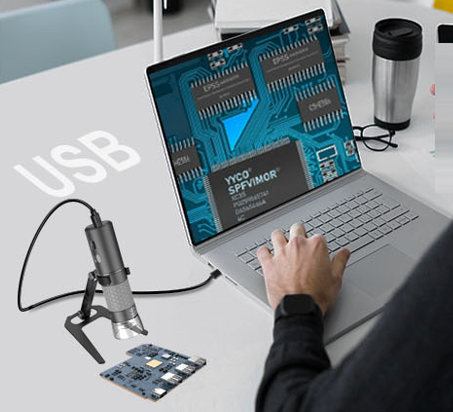
Step 4. Long press the switch button to turn on the microscope and remember to remove the lens cover.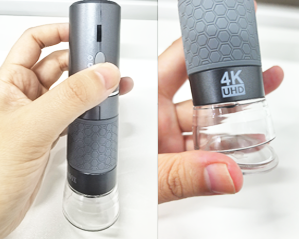
Step 5. Open the V-Scope
You would see the microscope image on the screen. If the V-Scope reminds "Camera not found", try to close the V-Scope, unplug the microscope from computer and re-plug it, turn on the microscope and run the V-Scope app again. Or try to replace the usb cable or plug to difference usb ports. If you can't make it work, click this email mostanne@outlook.com to contact us.
xploview
Step 1. Download the xploview
xploview.exe(3.87MB) Windows XP, Vista, 7, 8, 10 11 | 32 or 64 bitStep 2. Install the xoloview by opening the installation package and click on Next - Browse(optional) – Next – Install - Finish.
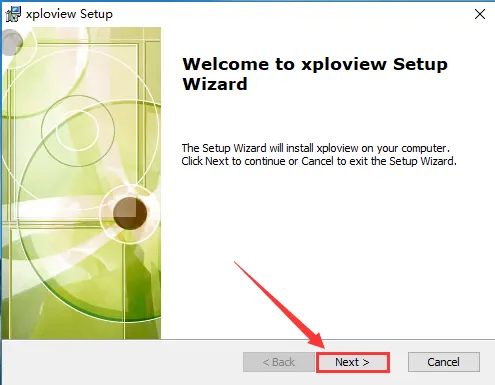
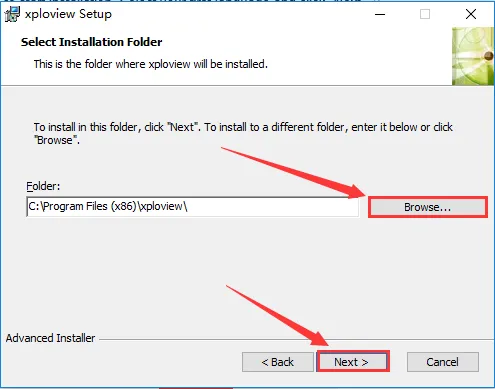
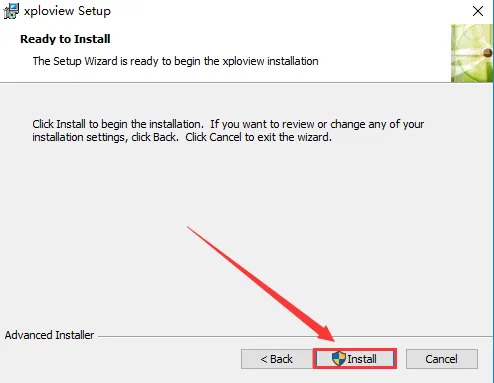
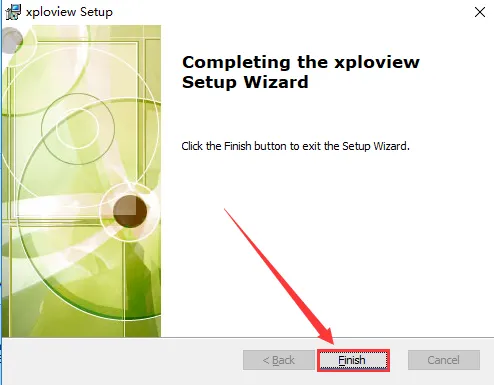
Step 3. Connect the 4K WiFi Microscope to the computer.
Step 4. Long press the switch button to turn on the microscope and remember to remove the lens cover.
Step 5. Open the xploview
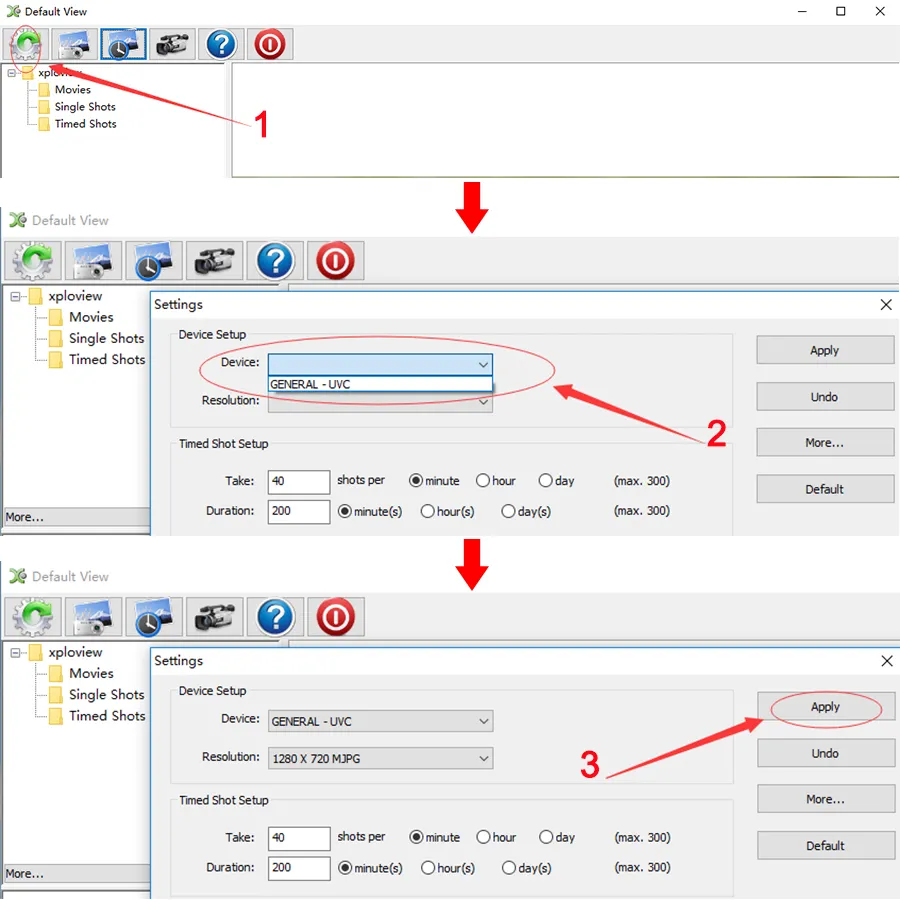
Click ①"Setting" – ②"Device" to select the microscope "GENERAL - UVC" under the "Device" menu. Click ③"Apply".
Note: The Zoom in/Zoom out buttons don't work on xploview app. To use the Zoom in/Zoom out buttons, please install V-Scope app.
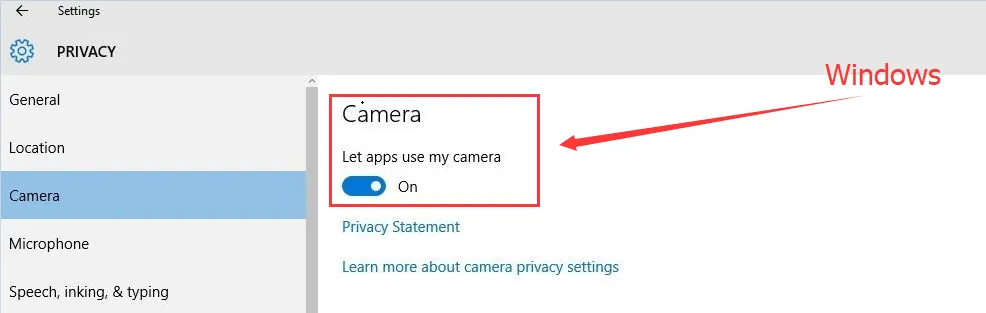
If you select the device but get black screen,please check your privacy setting by following the below picture. If you can't find the "GENERAL - UVC" on the dropdown, try to replace the usb cable or plug to difference usb ports. If you can't make it work, clik here mostanne@outlook.com to contact us.
Privacy Setting:
Mac
xploview
Step 1. Download the xploview
 xploview.pkg(9.73MB) macOS (10.5 and later) | 32 or 64 bit
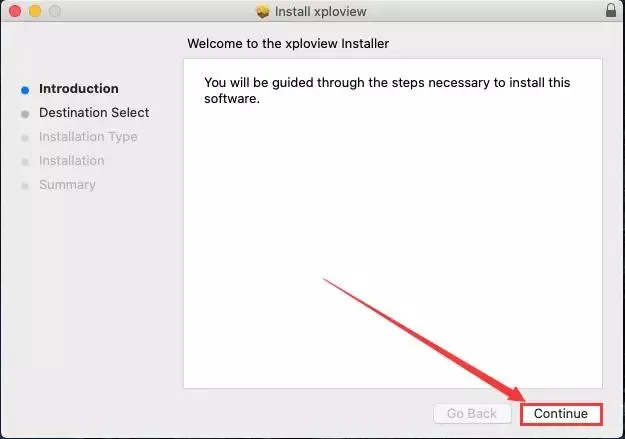
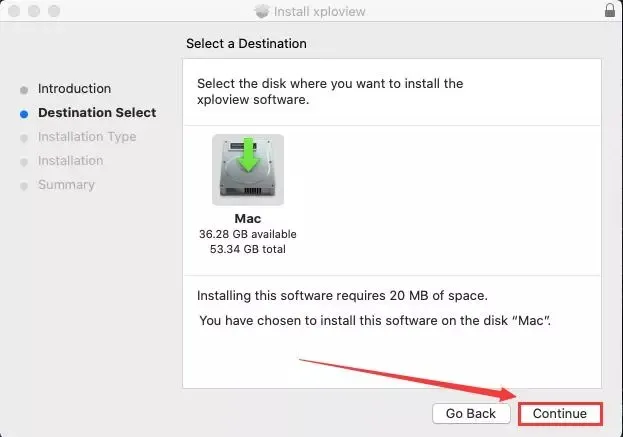
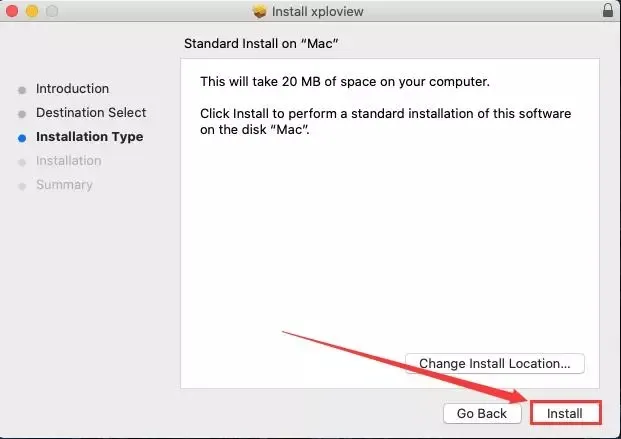
Step 2 Install the xploview by opening the installation package and click on Continue - Continue – Install – Close.
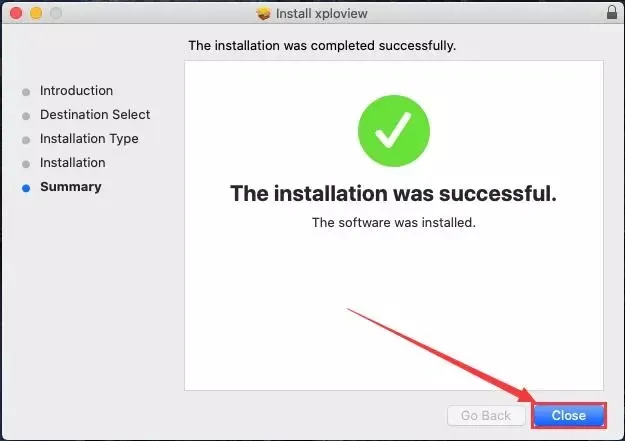
Step 3. Connect the 4K WiFi Microscope to the computer.
Step 4. Long press the switch button to turn on the microscope and remember to remove the lens cover.
Step 5. Open the xploview
Click ①"Setting" – ②"Device" to select the microscope "GENERAL - UVC" under the "Device" menu. Click ③"Apply".
Note the Zoom in/Zoom out buttons don't work on xploview app.
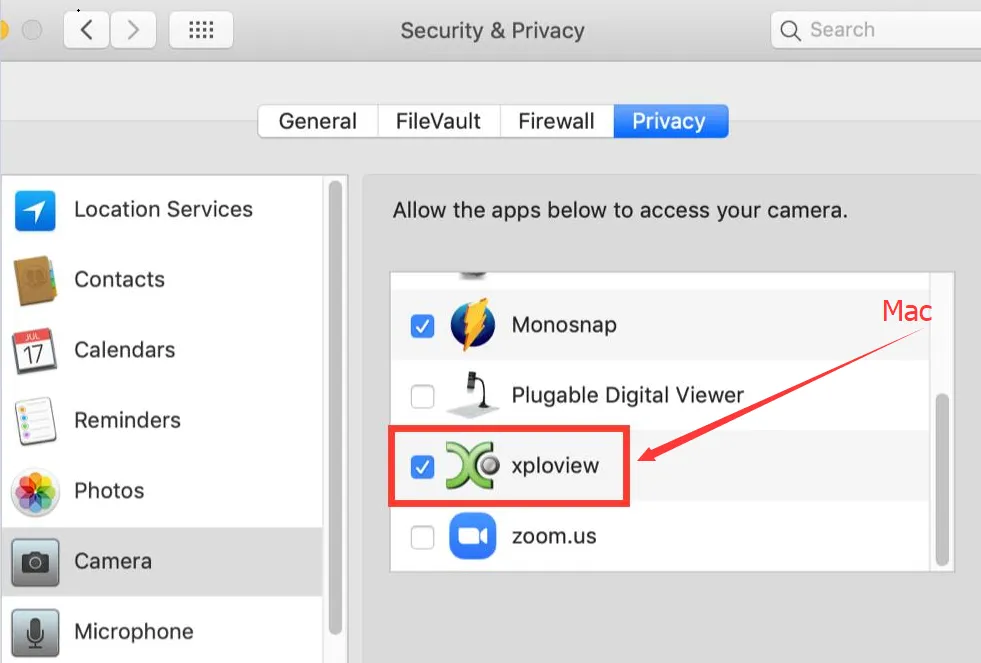
If you select the device but get black screen,please check your privacy setting by following the below picture. If you can't find the "GENERAL - UVC" on the dropdown, try to replace the usb cable or plug to difference usb ports. If you can't make it work, clik this email mostanne@outlook.com to contact us.
Privacy Setting:
iPhone/iPad/Android
Camscope
Step 1. Download and Install the Camscope App
iOS App Store:
Camscope.ipa(23.20MB) iOS 12.0 and aboveAndroid Google Play:
Camscope.apk(21.31MB) Android 5.0 and aboveAndroid 3rd party:
Camscope.apk(21.31MB) Android 5.0 and above
Step 2. Long press the switch button to turn on the microscope and remember to remove the lens cover.
Step 3. Setting-Select WLAN- Connect the “HD-Microscope-XXX” WIFI
It may remind “unsecured network” or “unavailable to access internet” which is normal.
And you can’t use the “DM WiFi” to access the Internet unless you disconnect it.
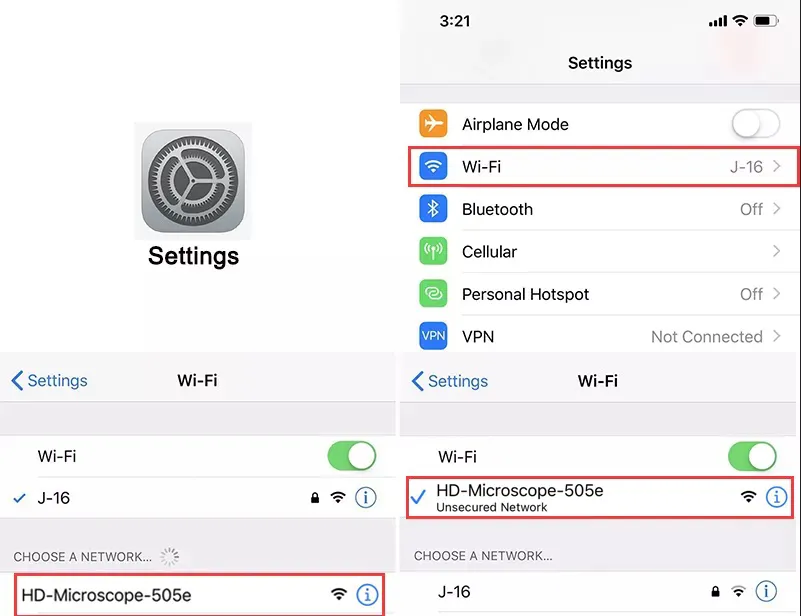
Step 4. Open the Camscope app
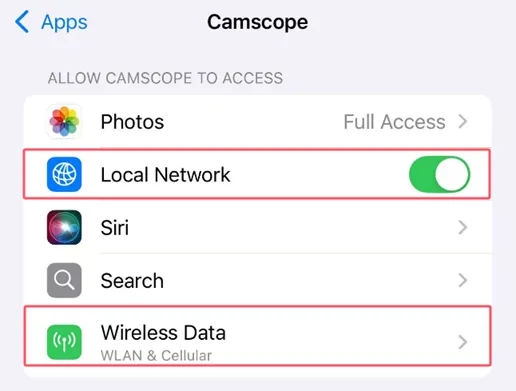
You can see the microscope image once you open the Camscope app. If you only get black screen on the app, please confirm if you have allow the app Camscope to use WiFi/WLAN. Or click this email mostanne@outlook.com to contact us for assistance. Android 12 user please runs the APP in a way compatible with Android 11 if you can't make it work.
IOS: Settings - Camscope - Allow Camscope to access Photos/WLAN&Cellular Data.
Android: Settings - Installed apps - Camscope - Restrict data usage - WLAN/WiFi. Allow and tap OK.