
Mostanne 1080P OTG Microscope
Thank you for ordering Mostanne 1080P Microscope. If you need any help about this microscope, please feel free to reach us via email mostanne@outlook.com, we will give you a certain reply within 24 hours.
Click to get Quick Access for
👉Windows
Windows
xploview
Step 1. Download the xploview
 xploview.exe(3.87MB) Windows XP, Vista, 7, 8, 10 11 | 32 or 64 bit
Step 2. Install the xoloview by opening the installation package and click on Next - Browse(optional) – Next – Install - Finish.
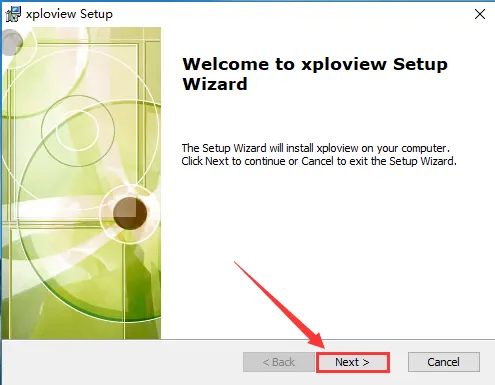
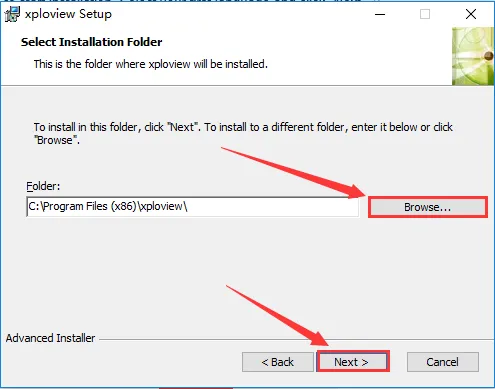
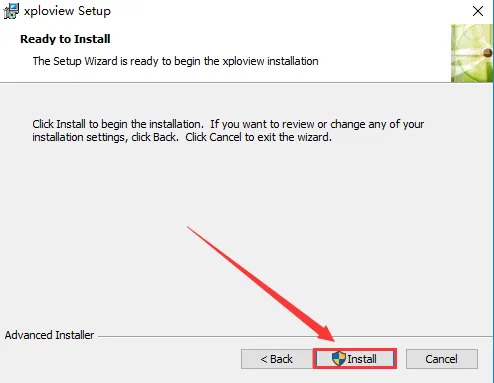
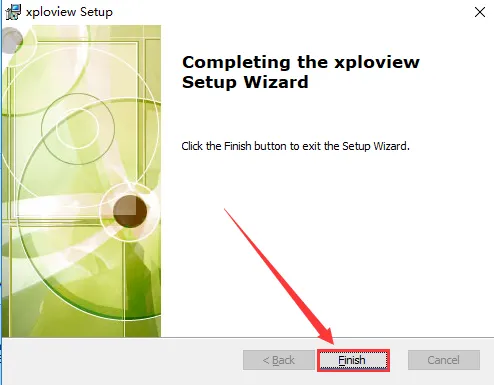
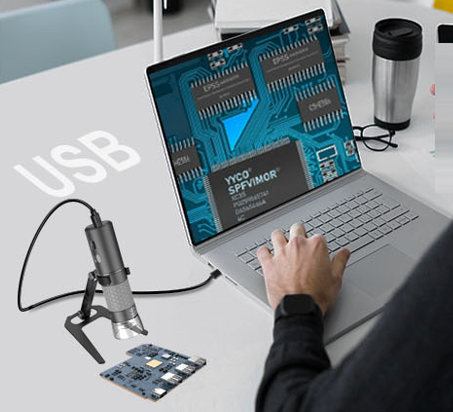
Step 3. Connect the 4K WiFi Microscope to the computer.
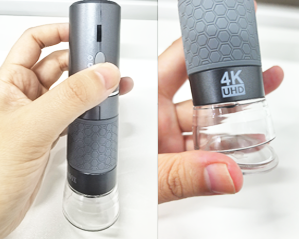
Step 4. Long press the switch button to turn on the microscope and remember to remove the lens cover.
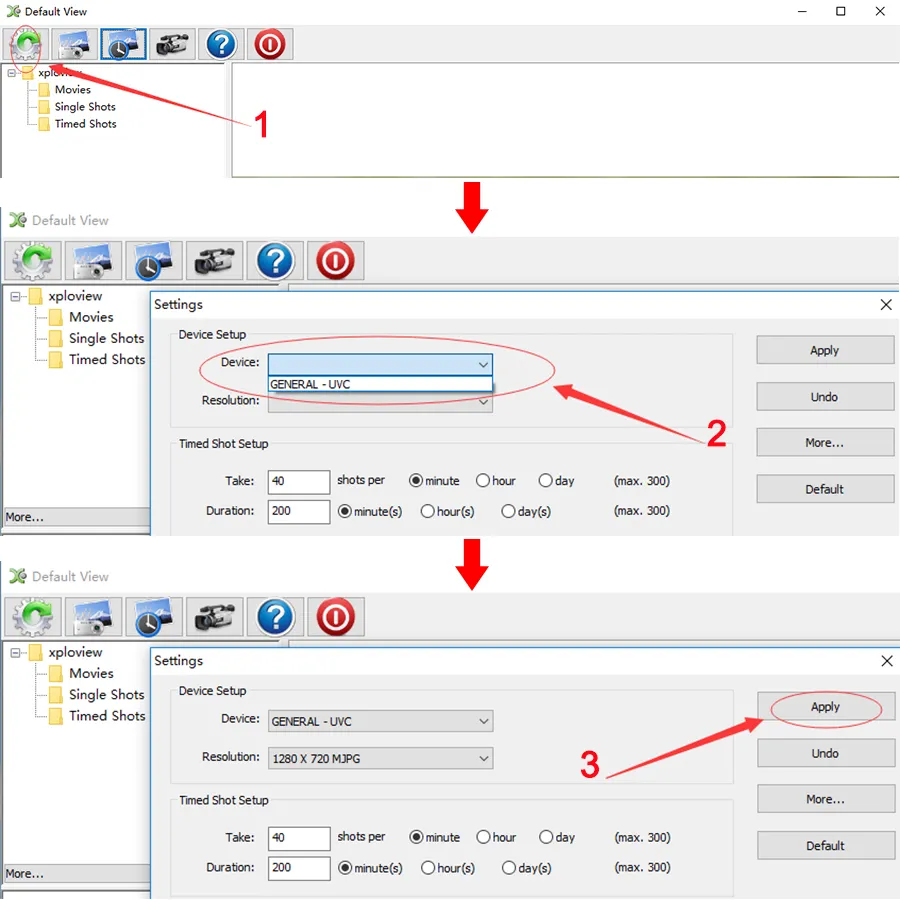
Step 5. Open the xploview
Click ①"Setting" – ②"Device" to select the microscope "GENERAL - UVC" under the "Device" menu. Click ③"Apply".
Note: The Zoom in/Zoom out buttons don't work on xploview app. To use the Zoom in/Zoom out buttons, please install V-Scope app.
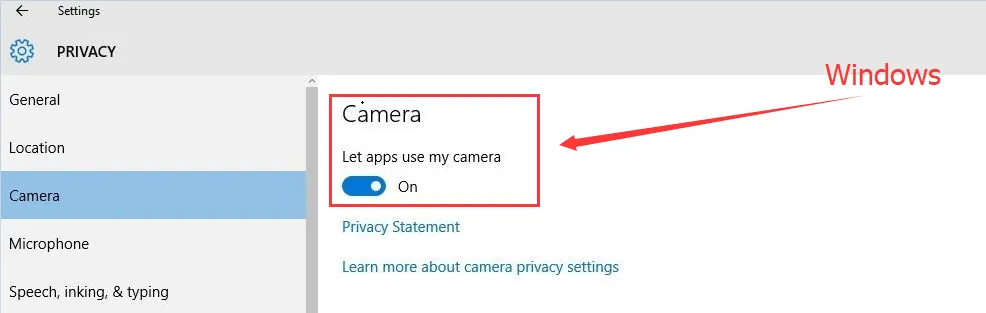
If you select the device but get black screen,please check your privacy setting by following the below picture. If you can't find the "GENERAL - UVC" on the dropdown, try to replace the usb cable or plug to difference usb ports. If you can't make it work, clik here mostanne@outlook.com to contact us.
Privacy Setting:
Mac
xploview
Step 1. Download the xploview
 xploview.pkg(9.73MB) macOS (10.5 and later) | 32 or 64 bit
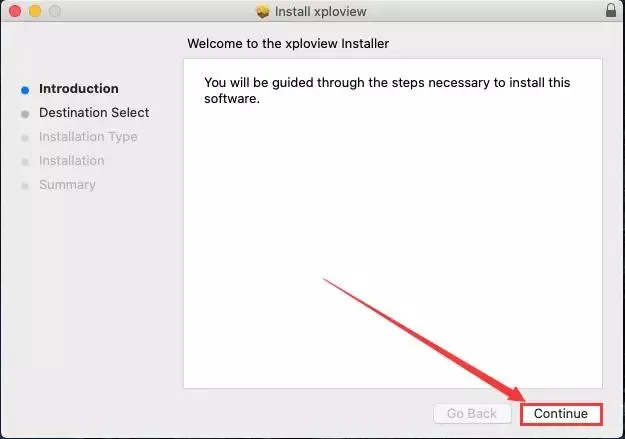
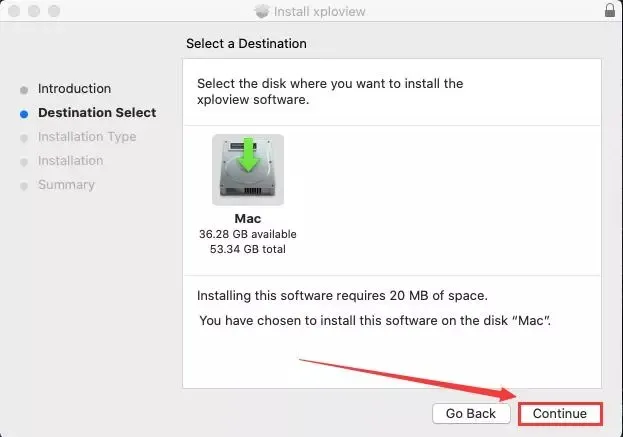
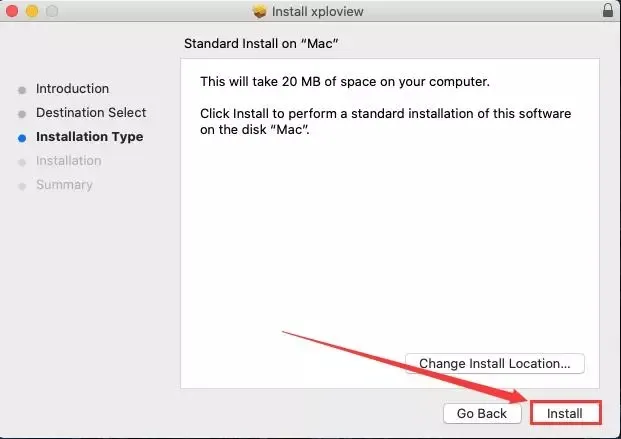
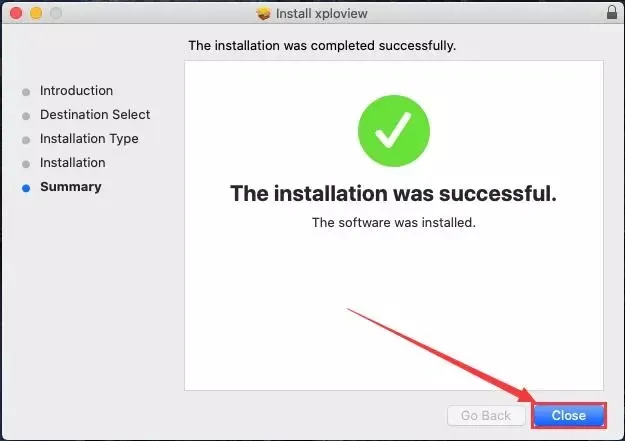
Step 2 Install the xploview by opening the installation package and click on Continue - Continue – Install – Close.
Step 3. Connect the 4K WiFi Microscope to the computer.
Step 4. Long press the switch button to turn on the microscope and remember to remove the lens cover.
Step 5. Open the xploview
Click ①"Setting" – ②"Device" to select the microscope "GENERAL - UVC" under the "Device" menu. Click ③"Apply".
Note the Zoom in/Zoom out buttons don't work on xploview app.
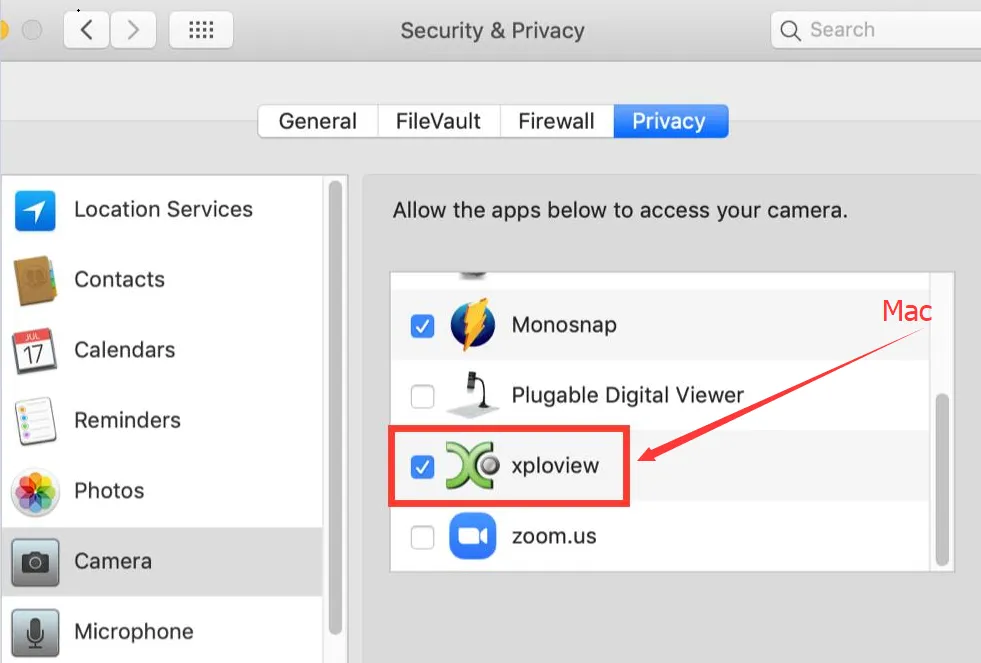
If you select the device but get black screen,please check your privacy setting by following the below picture. If you can't find the "GENERAL - UVC" on the dropdown, try to replace the usb cable or plug to difference usb ports. If you can't make it work, clik this email mostanne@outlook.com to contact us.
Privacy Setting:
iPhone/iPad/Android
Step 1 Install the app i-View
iOS App Store:i-View.ipa(58.4MB) iOS 9.0 and above
Android Google Play:i-View.apk(23.8MB) Android 5.0 and above
Android 3rd party:i-View.apk(23.8MB) Android 5.0 and above

Step 2 Plug the microscope into phone. If your phone is lightning or USB-C port, connect the microscope’s lightning plug or USB-C plug to phone’s charging slot. If your phone is micro USB port, flip a piece from USB plug and change it to micro USB plug.
Step 3 Run the i-View app. If the app can’t detect microscope device, try to: plug the microscope and re-plug in to your phone or remove the phone case if it has.
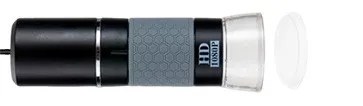
Step 4 Remove the lens cover and rotate the magnification wheel till a clear image is obtained.
Click to get Quick Access for
👉Windows
👉Mac
Windows
xploview
Step 1. Download the xploview
xploview.exe(3.87MB) Windows XP, Vista, 7, 8, 10 11 | 32 or 64 bitStep 2. Install the xoloview by opening the installation package and click on Next - Browse(optional) – Next – Install - Finish.
Step 3. Connect the 4K WiFi Microscope to the computer.
Step 4. Long press the switch button to turn on the microscope and remember to remove the lens cover.
Step 5. Open the xploview
Click ①"Setting" – ②"Device" to select the microscope "GENERAL - UVC" under the "Device" menu. Click ③"Apply".
Note: The Zoom in/Zoom out buttons don't work on xploview app. To use the Zoom in/Zoom out buttons, please install V-Scope app.
If you select the device but get black screen,please check your privacy setting by following the below picture. If you can't find the "GENERAL - UVC" on the dropdown, try to replace the usb cable or plug to difference usb ports. If you can't make it work, clik here mostanne@outlook.com to contact us.
Privacy Setting:
Mac
xploview
Step 1. Download the xploview
xploview.pkg(9.73MB) macOS (10.5 and later) | 32 or 64 bitStep 2 Install the xploview by opening the installation package and click on Continue - Continue – Install – Close.
Step 3. Connect the 4K WiFi Microscope to the computer.
Step 4. Long press the switch button to turn on the microscope and remember to remove the lens cover.
Step 5. Open the xploview
Click ①"Setting" – ②"Device" to select the microscope "GENERAL - UVC" under the "Device" menu. Click ③"Apply".
Note the Zoom in/Zoom out buttons don't work on xploview app.
If you select the device but get black screen,please check your privacy setting by following the below picture. If you can't find the "GENERAL - UVC" on the dropdown, try to replace the usb cable or plug to difference usb ports. If you can't make it work, clik this email mostanne@outlook.com to contact us.
Privacy Setting:
iPhone/iPad/Android
Step 1 Install the app i-View
iOS App Store:
i-View.ipa(58.4MB) iOS 9.0 and aboveAndroid Google Play:
i-View.apk(23.8MB) Android 5.0 and aboveAndroid 3rd party:
i-View.apk(23.8MB) Android 5.0 and aboveStep 2 Plug the microscope into phone. If your phone is lightning or USB-C port, connect the microscope’s lightning plug or USB-C plug to phone’s charging slot. If your phone is micro USB port, flip a piece from USB plug and change it to micro USB plug.
Step 3 Run the i-View app. If the app can’t detect microscope device, try to: plug the microscope and re-plug in to your phone or remove the phone case if it has.
Step 4 Remove the lens cover and rotate the magnification wheel till a clear image is obtained.


